How to resize one image for social media
To resize one image for several social platforms, choose your output sizes, decide whether to crop or keep the full photo, then check each preview before downloading. AICrop lets you do this from one source image. Start with the homepage demo to see all 13 presets together, then use the same controls with your own photo.
Tested October 10, 2026 · Actual AICrop demo outputs shown below.
Try the demo in all 13 sizes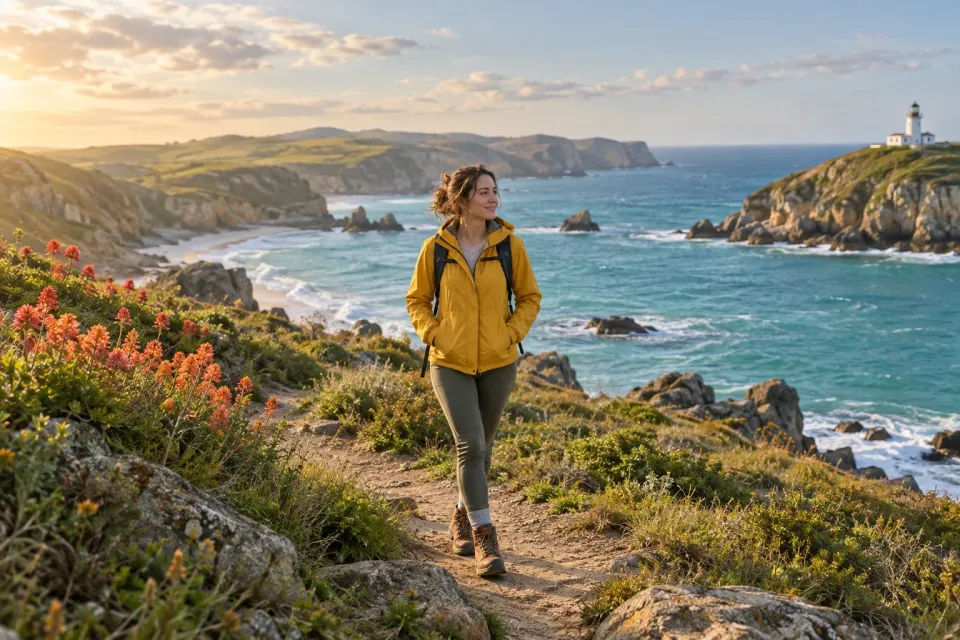
Try all 13 sizes with the demo image
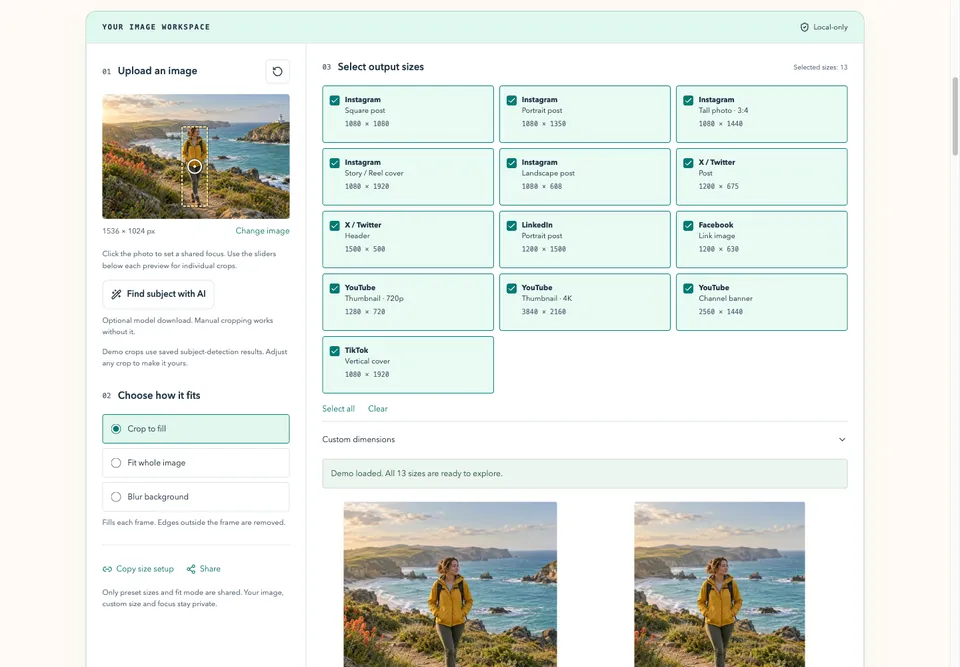
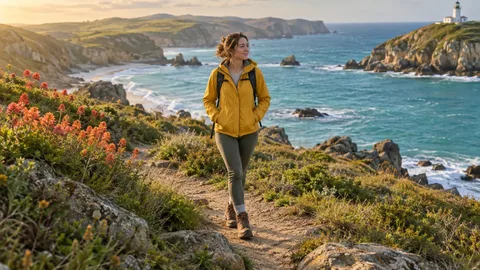
Open the demo from this guide or the homepage. It loads a landscape travel image and selects all 13 presets in Crop to fill mode, using saved subject-detection results to keep the traveler in frame. The default previews load as images; edits are rendered in your browser. The dashed box shows the saved detection, while each output uses a focus suited to its shape. You can try the controls before choosing a personal photo.
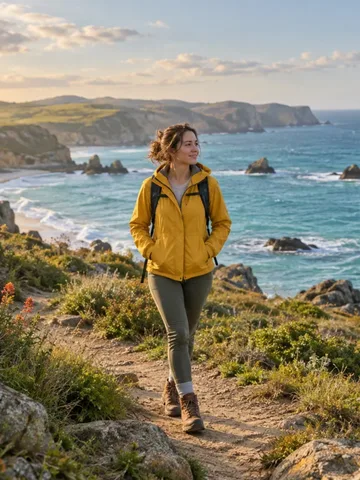
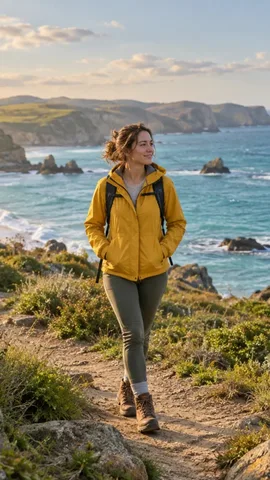
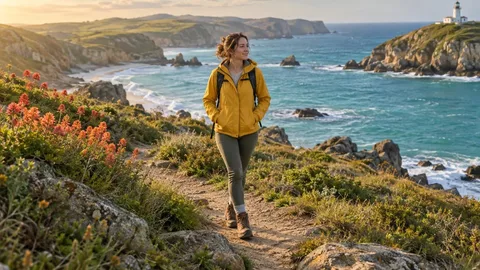
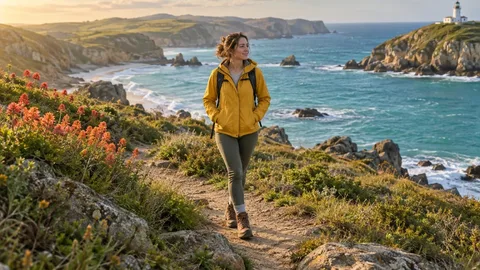
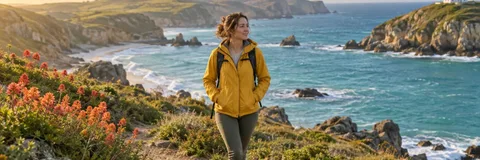
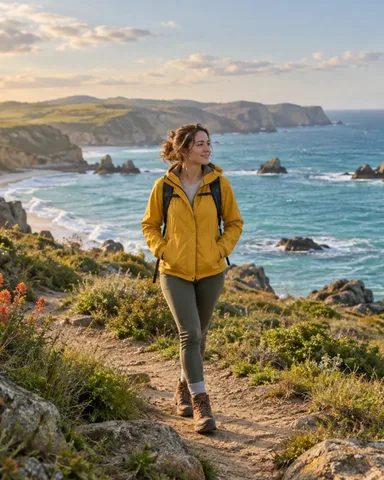
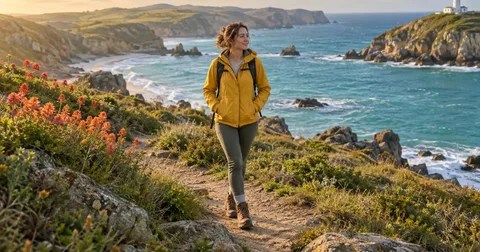
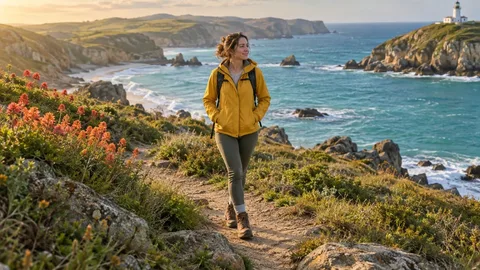
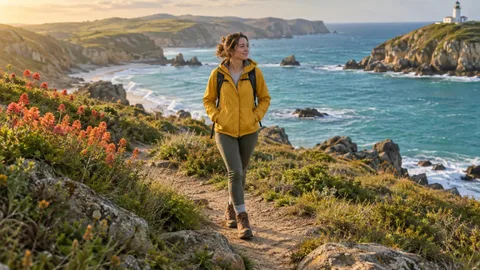
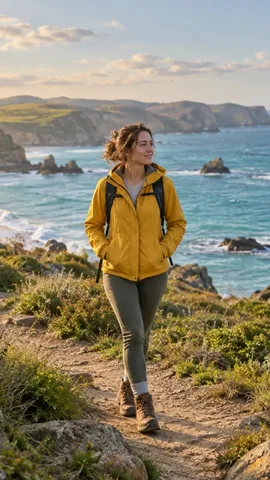
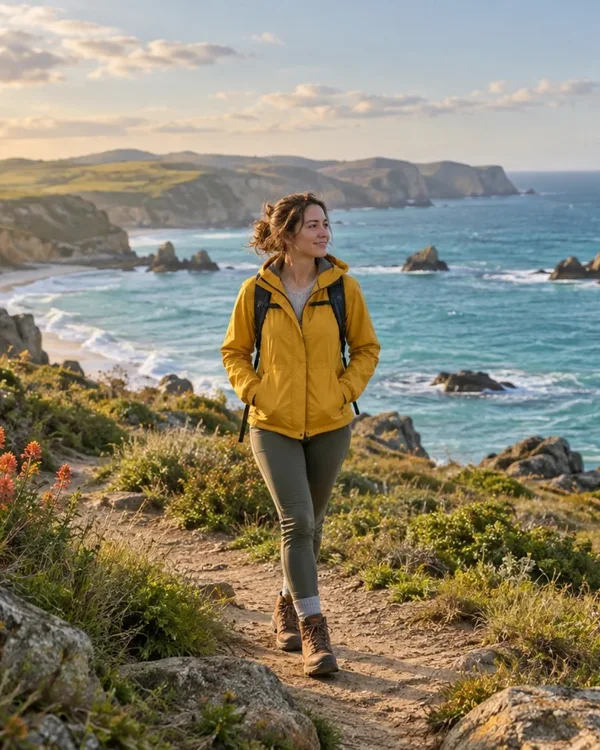
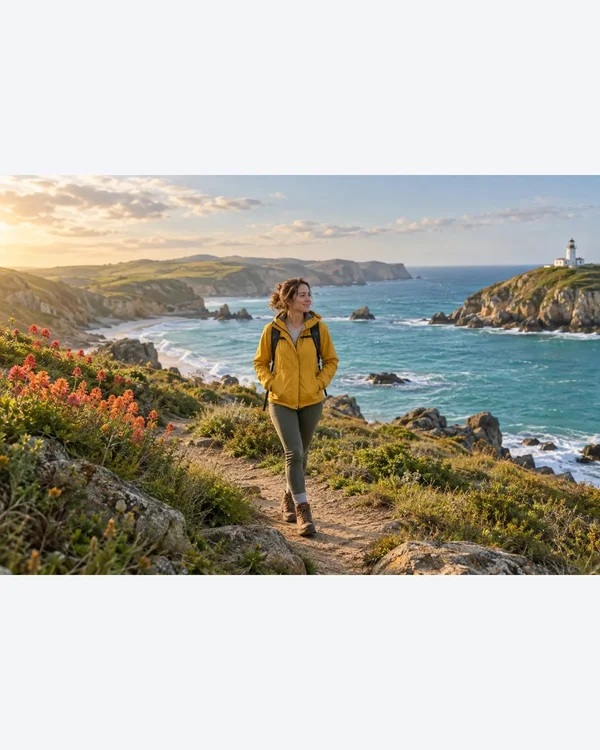
The sample shows a traveler in a yellow jacket, a coast, a lighthouse and flowers. AICrop created it with AI for this demonstration. The scene gives you several details to follow as the frame changes; it is not a customer's photograph or evidence of a real trip. Your own images may need different framing.
- Open the demo and wait for the previews to appear.
- Check that 13 output sizes are selected, then compare a square, a portrait and a wide preview.
- Keep the demo open while you try the fit and focus controls below.
Notice what each frame keeps
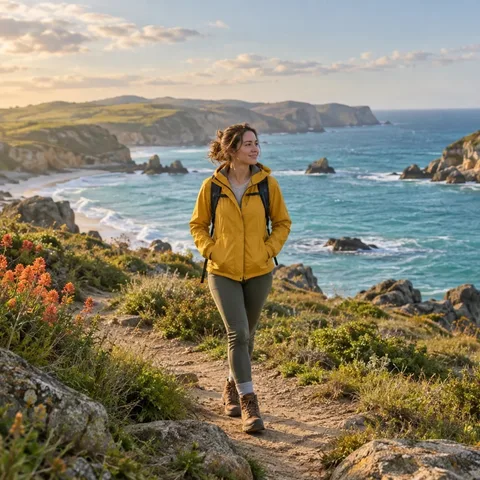
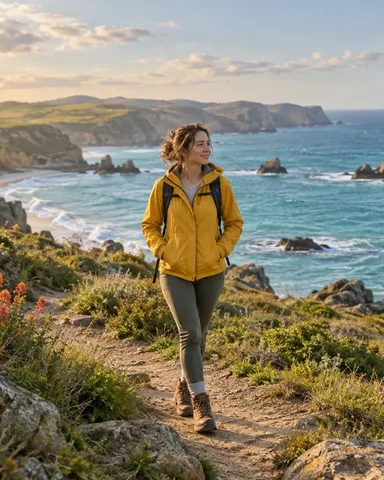
Start with the traveler. A narrow vertical frame has less room for the coast beside them, while a wide frame can show more of the surroundings and less above or below. A square gives you another composition. Look for the lighthouse and flowers in each preview: which details support the picture, and which can you afford to lose?
The same photo does not need the same crop everywhere. A vertical cover might work best with attention on the person. A landscape thumbnail might need more of the setting. The previews show how those choices affect the image before you create any files.
Choose between cropping and extra background
Crop to fill covers each output frame and removes the parts outside it. It preserves the image proportions, so the traveler is not stretched to fit. Use it when you can lose some background and want the image to reach every edge.
Switch to Fit whole image to keep the traveler, lighthouse and flowers together. The entire source stays visible inside each exported canvas. If its shape differs from the selected size, the remaining space uses your chosen background color. Compare the vertical preview with the wide one to see how much extra space each needs.
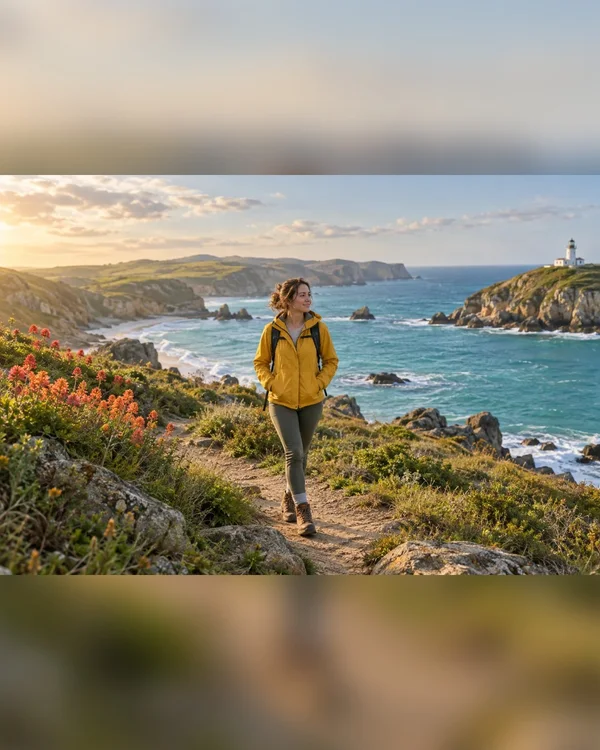
Blur background also keeps the full photo, but fills the space behind it with a blurred copy. Try it when a plain border feels too separate from the scene. The fit setting applies to all selected sizes; download one version before switching modes if you want to keep both.
Give each crop the right focus
For your own photo, try Find subject with AI first. The model runs on your device and marks the detected subject on the source image. It sets a focus for each output shape; a short landscape crop of a standing person prioritizes the head and upper body. In Crop to fill mode, you can also click the source photo near the subject you want to keep. This sets a shared focus for the selected crops. Then open Adjust this crop under a preview and use its Horizontal and Vertical sliders to fine-tune that one result.
Some slider movements will make little difference when the crop is already against an edge or there is no spare image in that direction. A focus point cannot keep two distant details inside a frame that is too narrow. Try Fit whole image if both are essential.
Subject detection requires an optional model download. It can miss the traveler or choose something else, so check the previews afterward. Setting a new shared focus clears individual crop adjustments; establish the shared focus first.
Keep the sizes you plan to use
The demo selects every preset so you can compare them. For an actual post, uncheck the sizes you do not need. Each label shows the platform, format and output dimensions. These are practical export presets, and the destination app may still show a different crop in its feed, profile or cover preview.
You can include a custom size by entering its width and height. It uses the same fit mode as the other outputs. Keep custom size disabled if you want the demo's original set of 13 files.
Replace the example with your own photo
Choose Change image to open a JPG, PNG or WebP from your device. AICrop accepts one source image at a time, up to 10 MB and 40 megapixels. Opening another image replaces the current source, so download anything you want to keep first.
Start with the largest useful original rather than a screenshot of an earlier post. Choosing a larger output canvas does not recover missing detail. If a preview warns that the output is larger than the original, inspect the saved image before deciding to use it.
Save a JPEG or the whole set
Use the download button below a preview to save that JPEG. With all 13 presets selected and no custom size, Download ZIP prepares those 13 JPEGs together. Extract the files before uploading them to a social platform. Check the filenames and dimensions to choose the right version.
Exports are JPEG, so transparent parts of a PNG become a background color. Guides and preview labels do not appear in the output. Some presets have file-size targets that require JPEG compression; if an export fails, follow the error and try a smaller size or simpler source.
Open the saved file to check faces, text and fine detail. Then use the destination app's preview before posting. Image processing and ZIP creation run in your browser, and you should save your downloads before closing or reloading the page.
Try it with your image
Try the demo in all 13 sizesRelated guide: YouTube banner cropped on mobile? Fix the safe area