Choose your artwork and size
Open one JPG, PNG or WebP up to 10 MB and 40 megapixels. Select the 1280 × 720 or 3840 × 2160 thumbnail preset. Start from the original artwork when possible.
Make the first impression fit.
Turn your artwork into a 16:9 video thumbnail. Choose 1280 × 720 or 3840 × 2160, crop or keep the full image, and export under 2 MB for mobile uploads.
Choose your imageDrag & drop or click to choose a file. Supports JPG, PNG, WebP up to 10MB.
Fills each frame. Edges outside the frame are removed.
Only preset sizes and fit mode are shared. Your image, custom size and focus stay private.
Your selected sizes will appear here.
No account. No watermark. Images stay on your device.Exports contain your image only. Preview guides are never included. Save your downloads before closing this page.
Same photo. Three ways to fit.
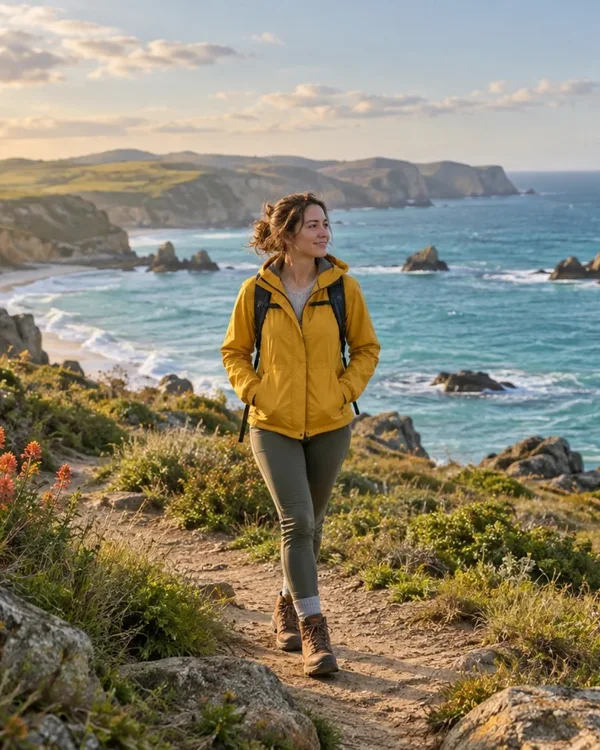
Fills each frame. Edges outside the frame are removed.
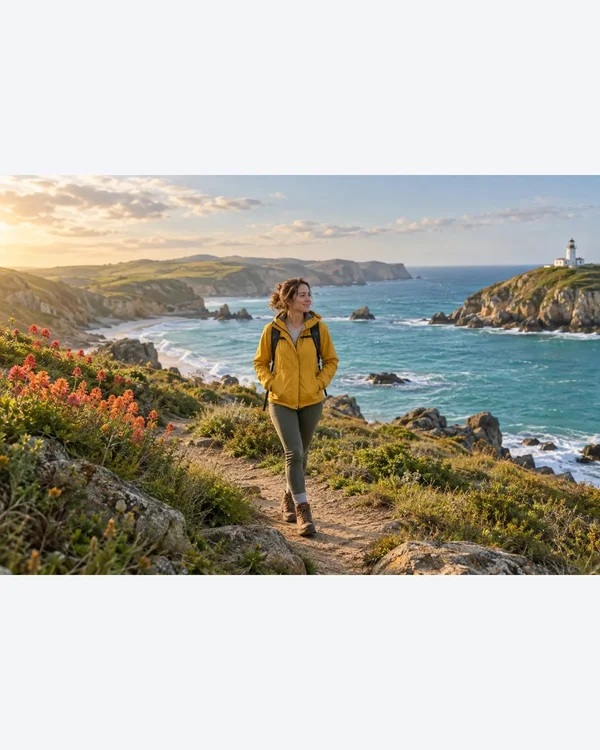
Keeps the whole photo without stretching. Empty space uses your chosen color.
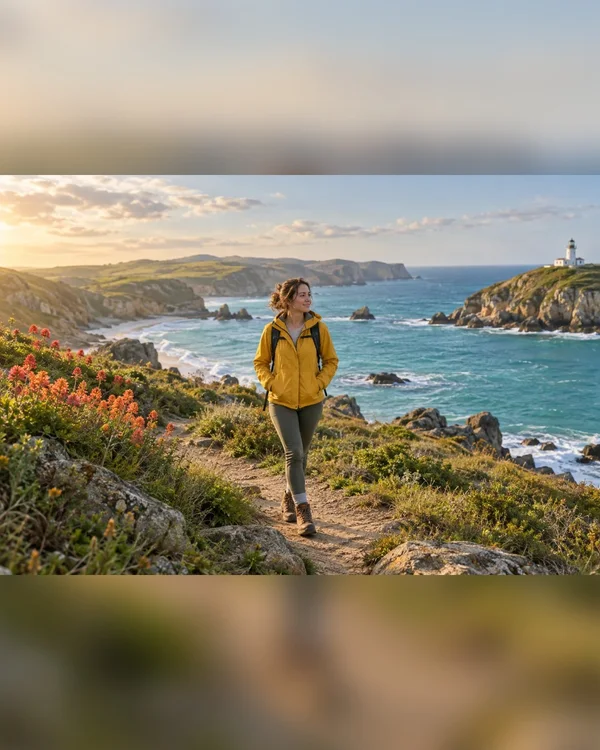
Keeps the whole photo over a blurred copy of itself.
Open one JPG, PNG or WebP up to 10 MB and 40 megapixels. Select the 1280 × 720 or 3840 × 2160 thumbnail preset. Start from the original artwork when possible.
Crop to fill trims the edges. Fit whole image preserves your source with a background. Check that faces and text remain visible in the preview.
Download the thumbnail and open the saved file to check text edges. AICrop adjusts quality toward 2 MB; if a 4K export fails or looks too compressed, try 1280 × 720.
These are export presets. Always check the final display in the app where you post.
| Platform | Format | Pixels |
|---|---|---|
| YouTube | Thumbnail · 720p | 1280 × 720 Use this size |
| YouTube | Thumbnail · 4K | 3840 × 2160 Use this size |
YouTube currently recommends 3840 × 2160 for video thumbnails, with a minimum width of 640 pixels. AICrop also offers 1280 × 720 as a smaller option. Both presets use a 16:9 aspect ratio.
YouTube lists a 2 MB limit for video thumbnails uploaded from mobile and a 50 MB limit on desktop. AICrop targets 2 MB for both presets so its exports can also be used for mobile uploads.
Select the 1280 × 720 preset and Fit whole image. It keeps the original proportions and adds a background where needed. Choose Crop to fill if you want to fill the frame and are willing to trim the edges.
Detailed images can need more JPEG compression to fit under 2 MB. AICrop tries several quality settings and reports an error if none meets the limit. Try 1280 × 720, or simplify the design in your editor. Enlarging a small source will not add detail.
These presets are for landscape video thumbnails. YouTube recommends 2160 × 3840 (9:16) for Shorts. Verified accounts can upload a custom Shorts thumbnail in YouTube Studio on a computer; check the current Help instructions for your device and account.
Source: YouTube Help. Specifications checked October 10, 2026.